
In 3 steps
How do I add photos to my ticket?
Photos and documents are added in the Photos / Documents field while you create the ticket.
Find the Photos / Documents field
On the page for creating a support ticket, it is right below Issue Description.
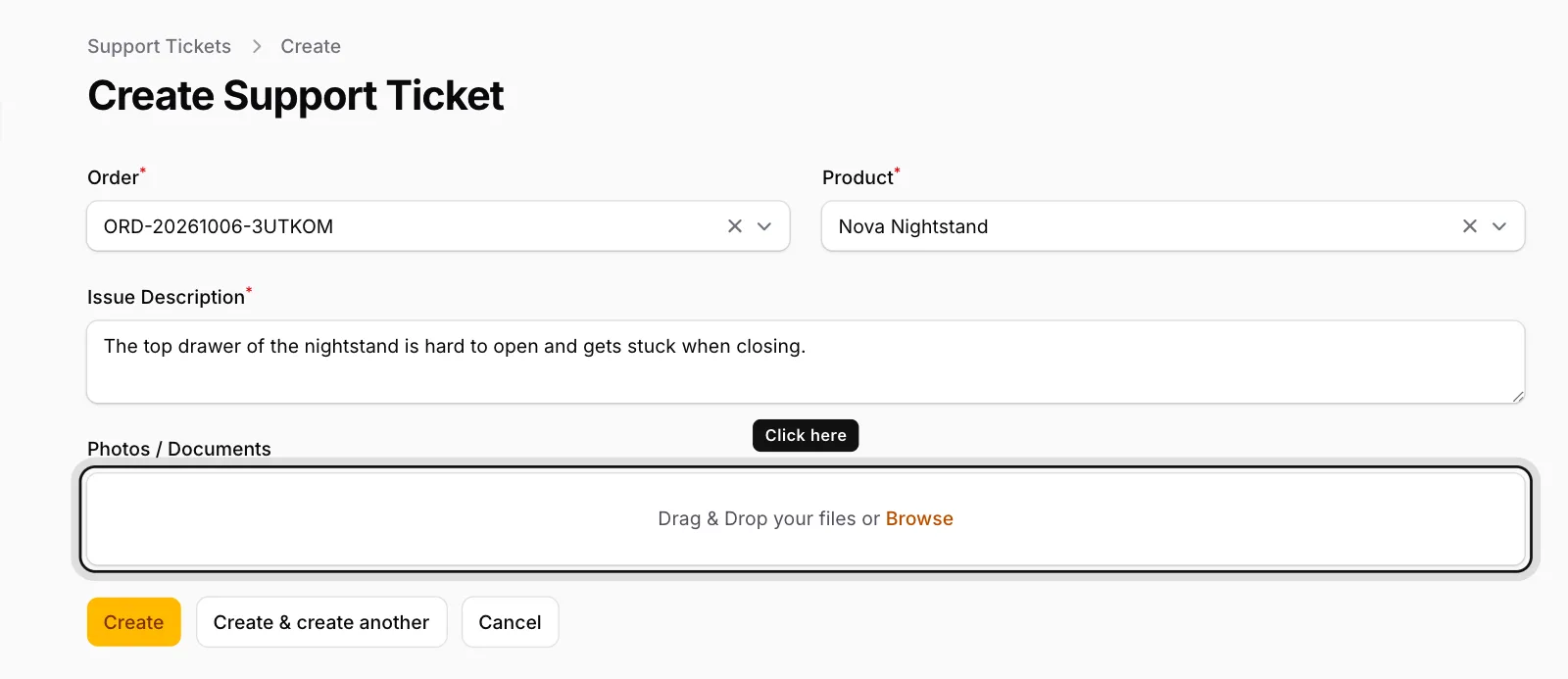
Add your files
Drag the photos onto the field or click Browse to pick them from your computer or phone. Wait until each file has finished uploading; the photos then show as small previews.
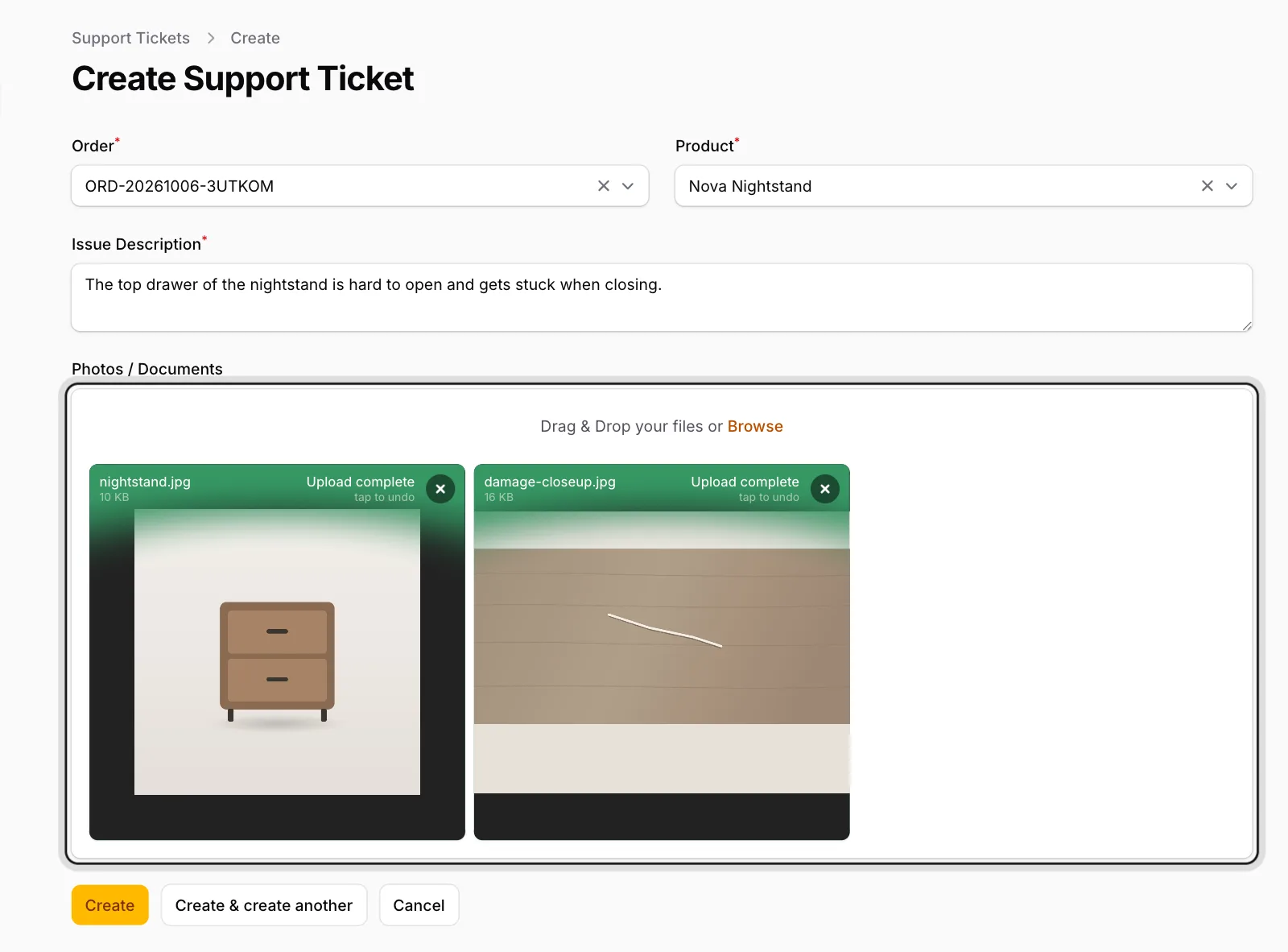
Create the ticket
Click Create. Your photos appear on the ticket page in the Photos / Documents section; click one to enlarge it.
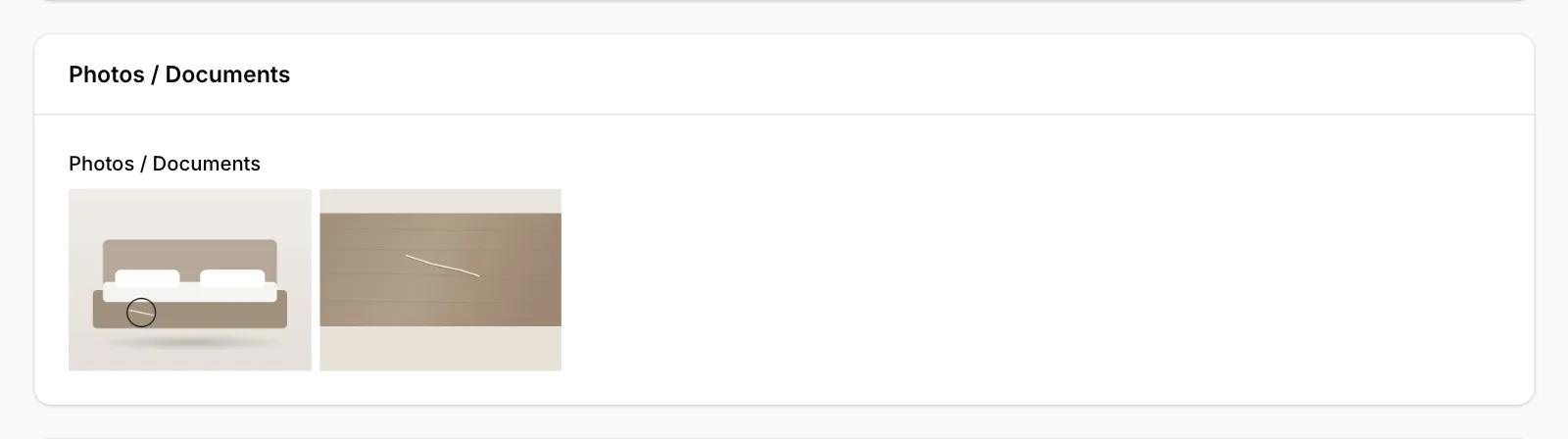
Take clear, well-lit photos that show the damage: add one of the whole product and a close-up of the problem area. Photos can’t be added after the ticket has been sent; if you need to send more, please contact ENKA HOME.