
How do I open a support ticket?
If there is a problem with a product you received, open a support ticket with photos.
If you change the language, the video opens in that language too.
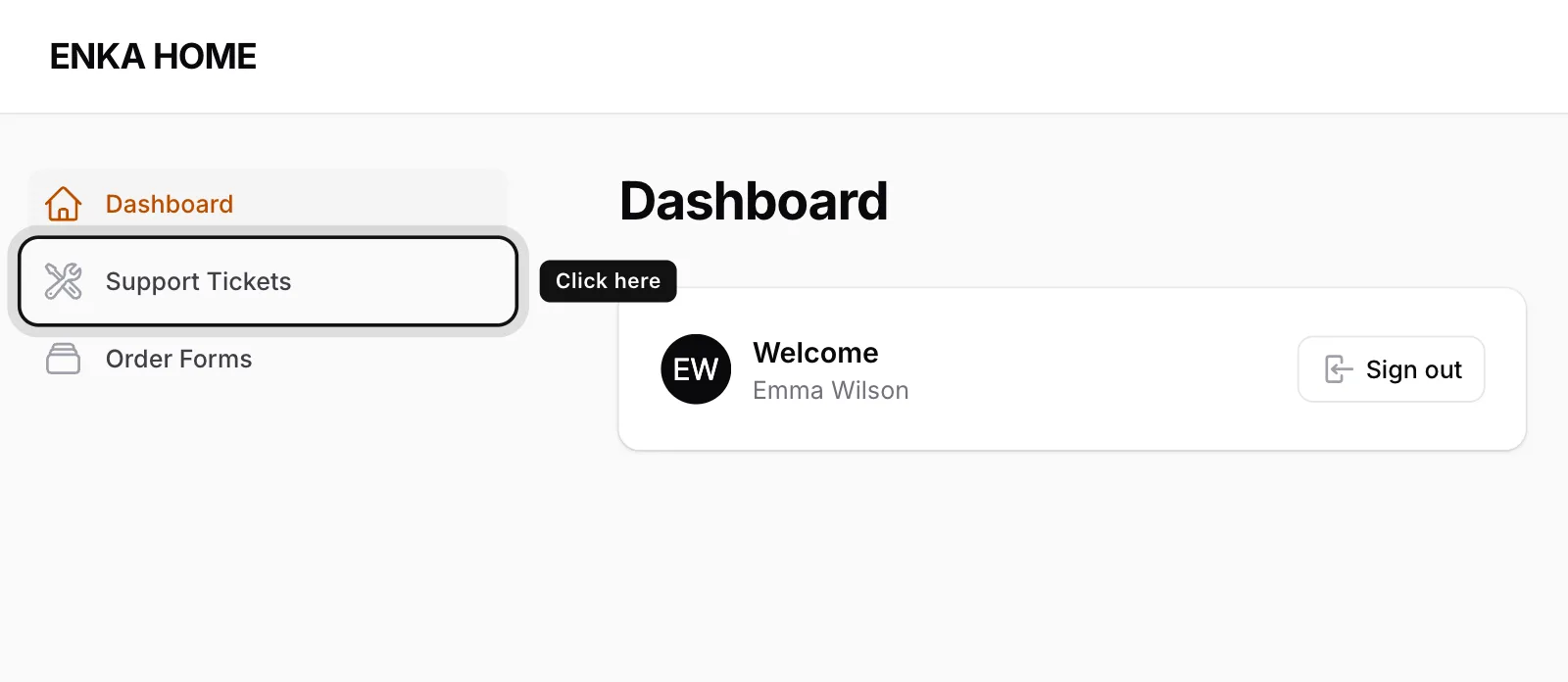
Click Support Tickets
You’ll find it in the menu on the left.
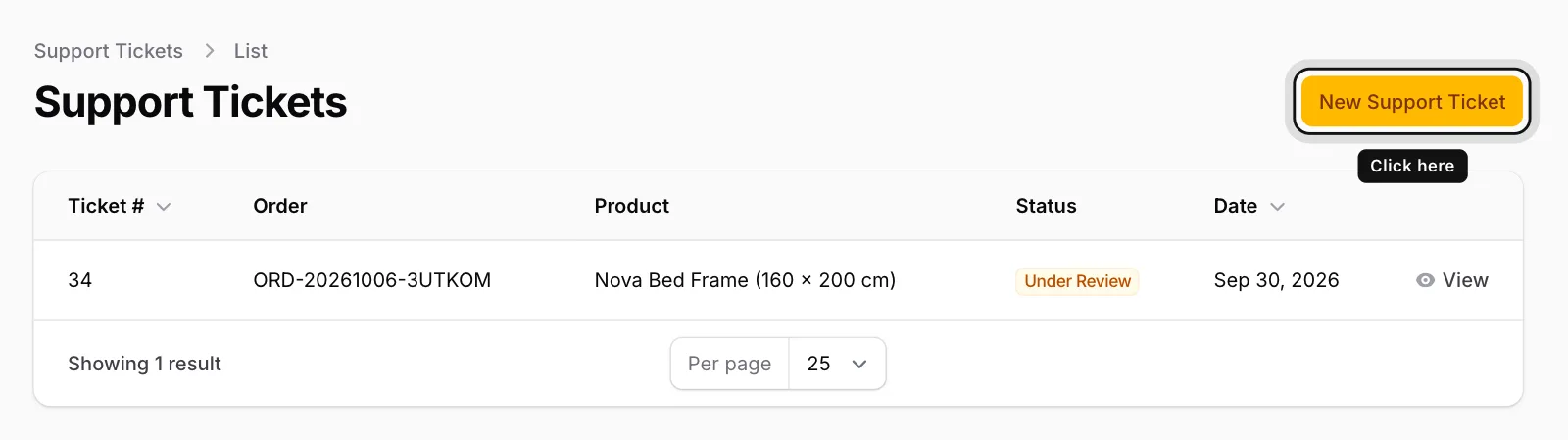
Click New Support Ticket
It’s the button at the top right.
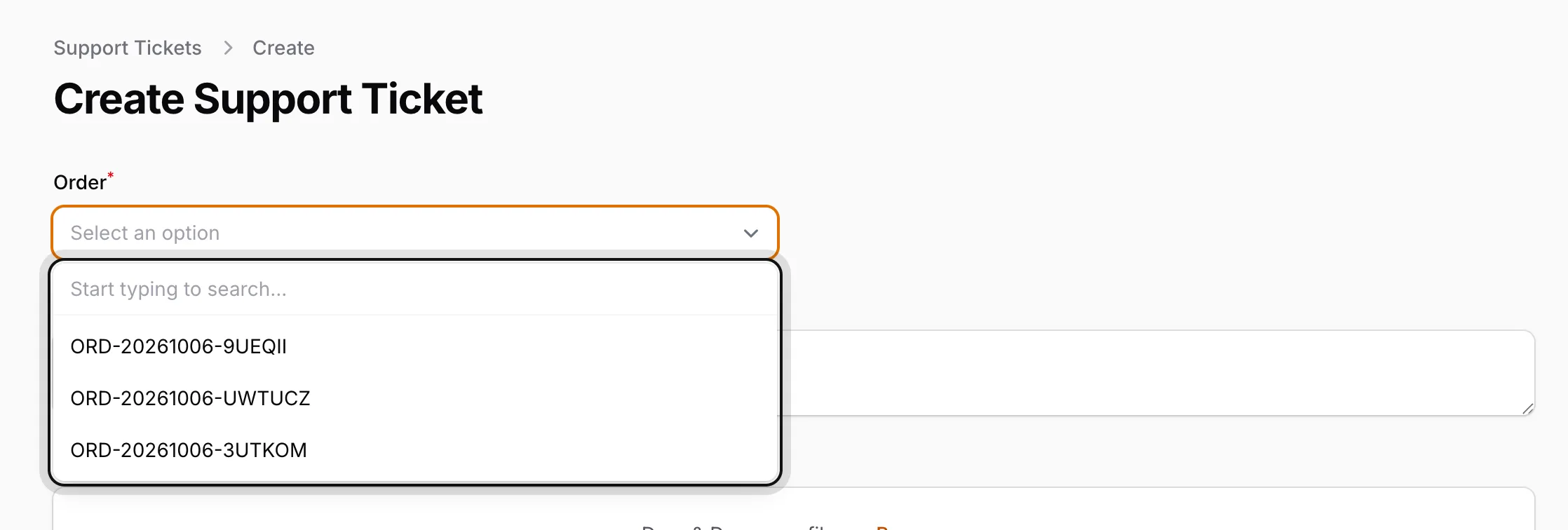
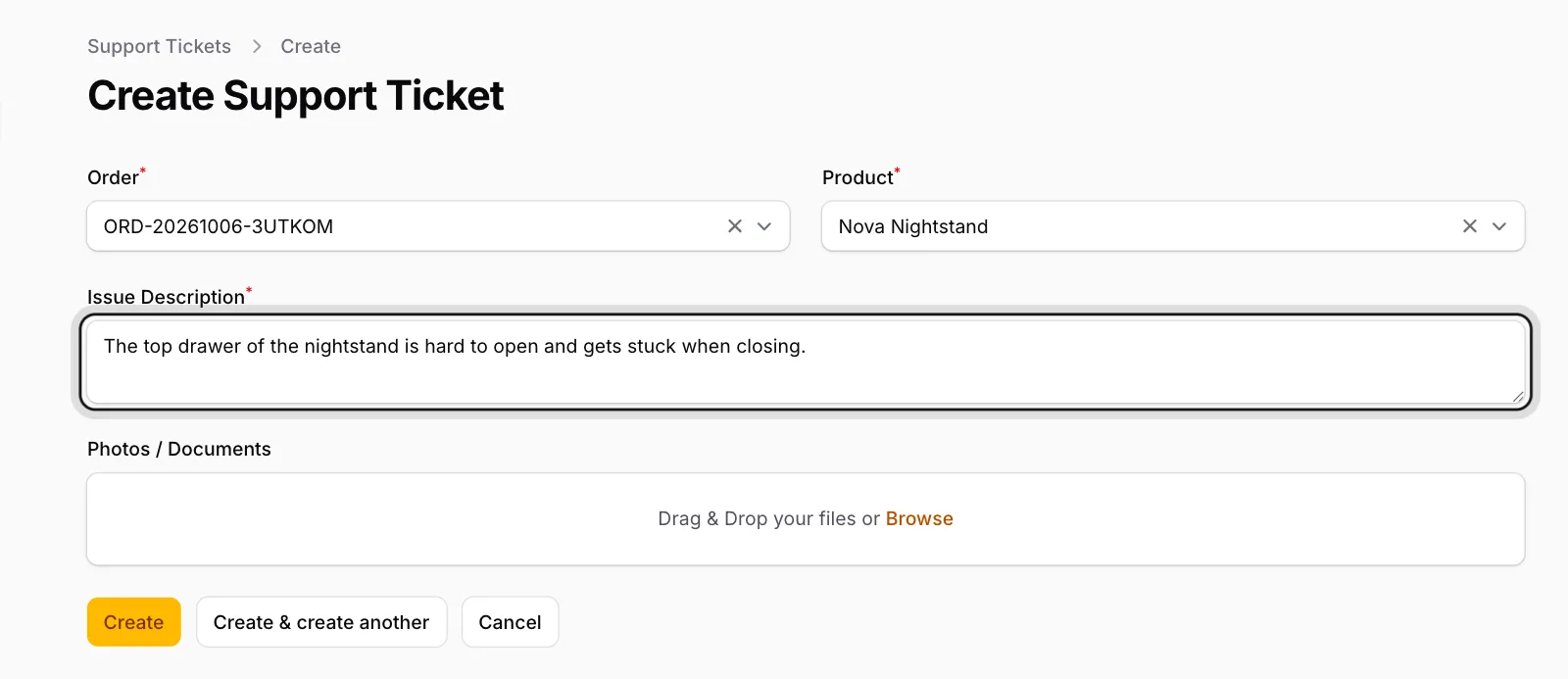
Choose the order
Click the Order field and choose the number of the order that contains the product.
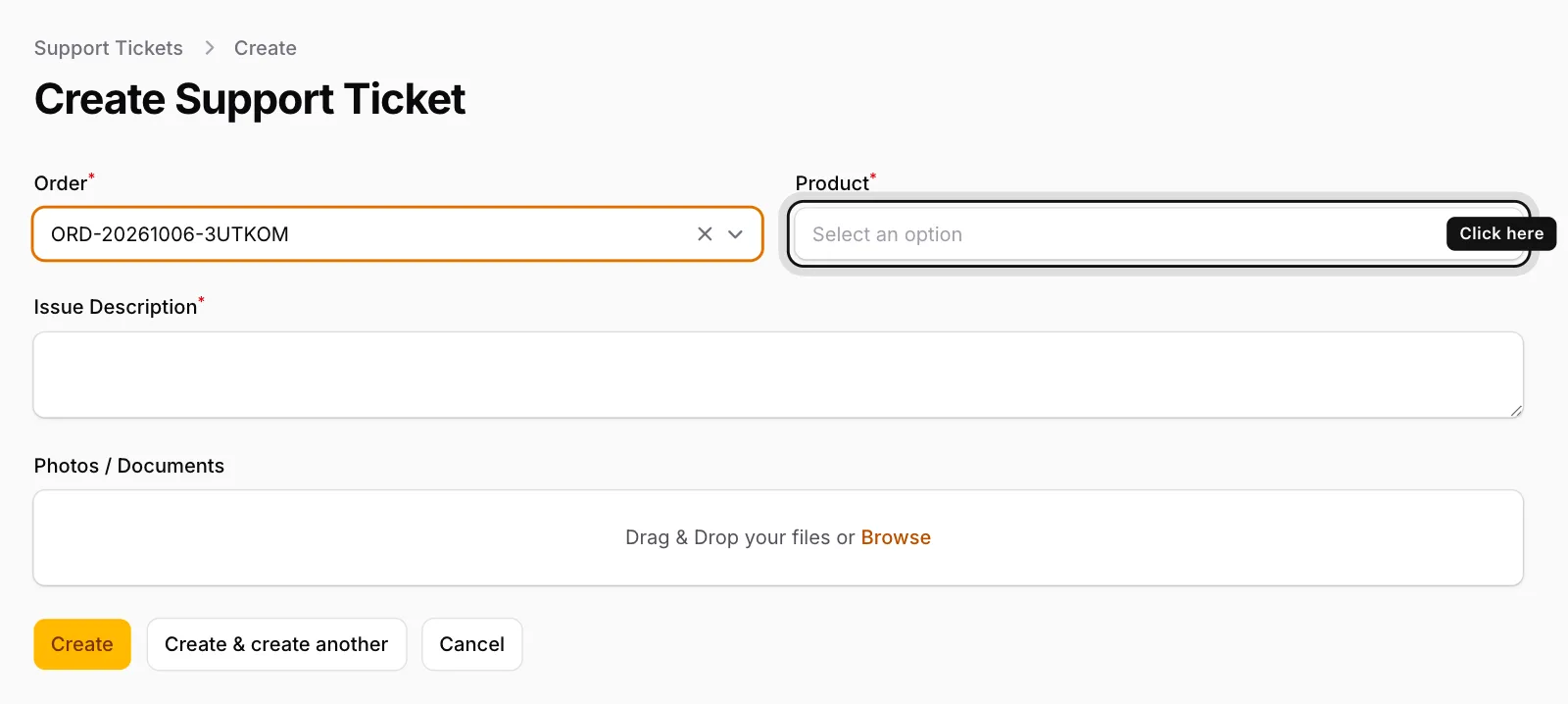
Choose the product
Once the order is chosen, the Product field appears. Choose the product with the problem.
Describe the problem
In Issue Description, write briefly what happened: which part, what kind of problem and when you noticed it.
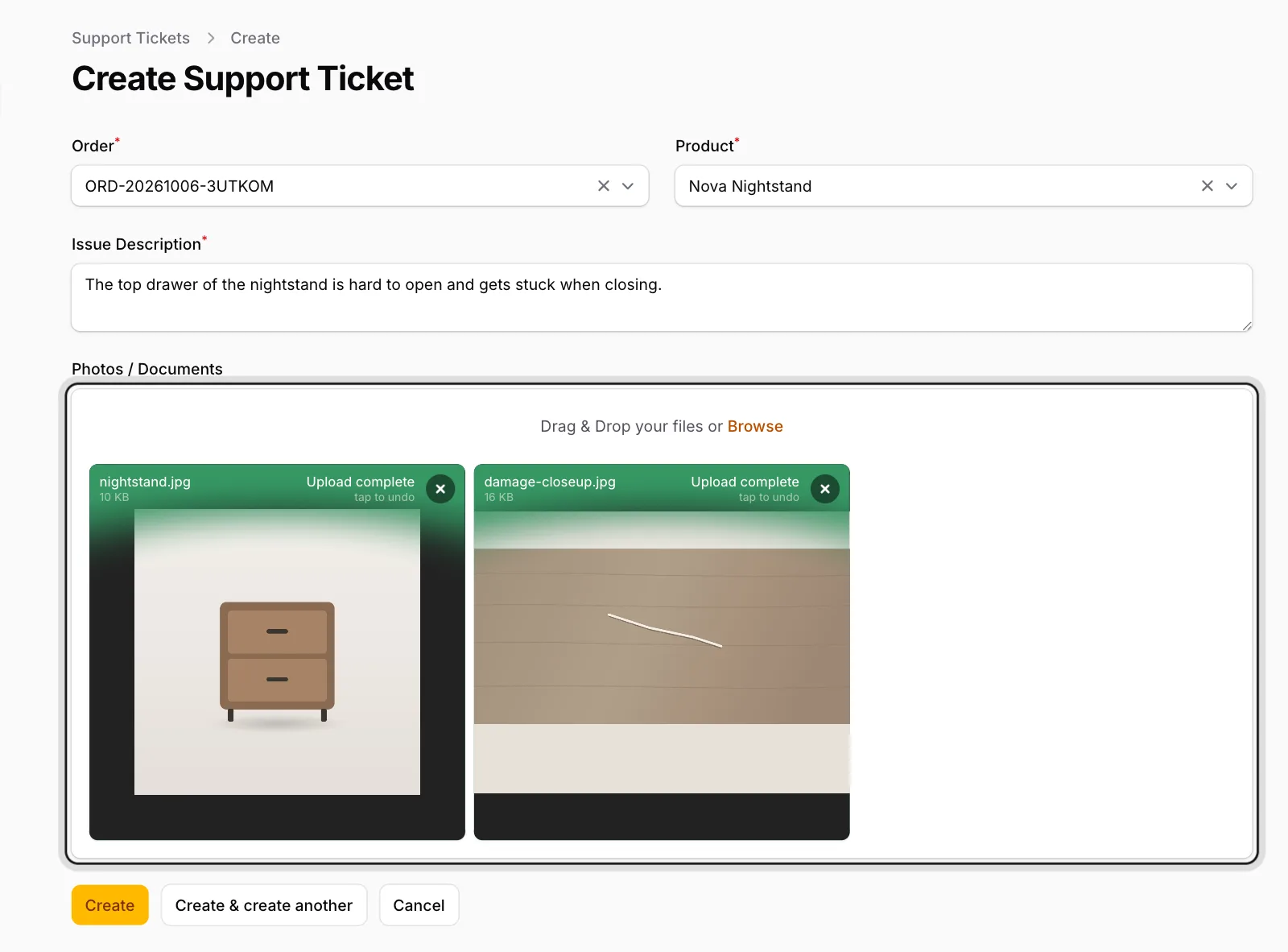
Add photos
Drag your photos onto the Photos / Documents area or click Browse to pick them. You can add several files.
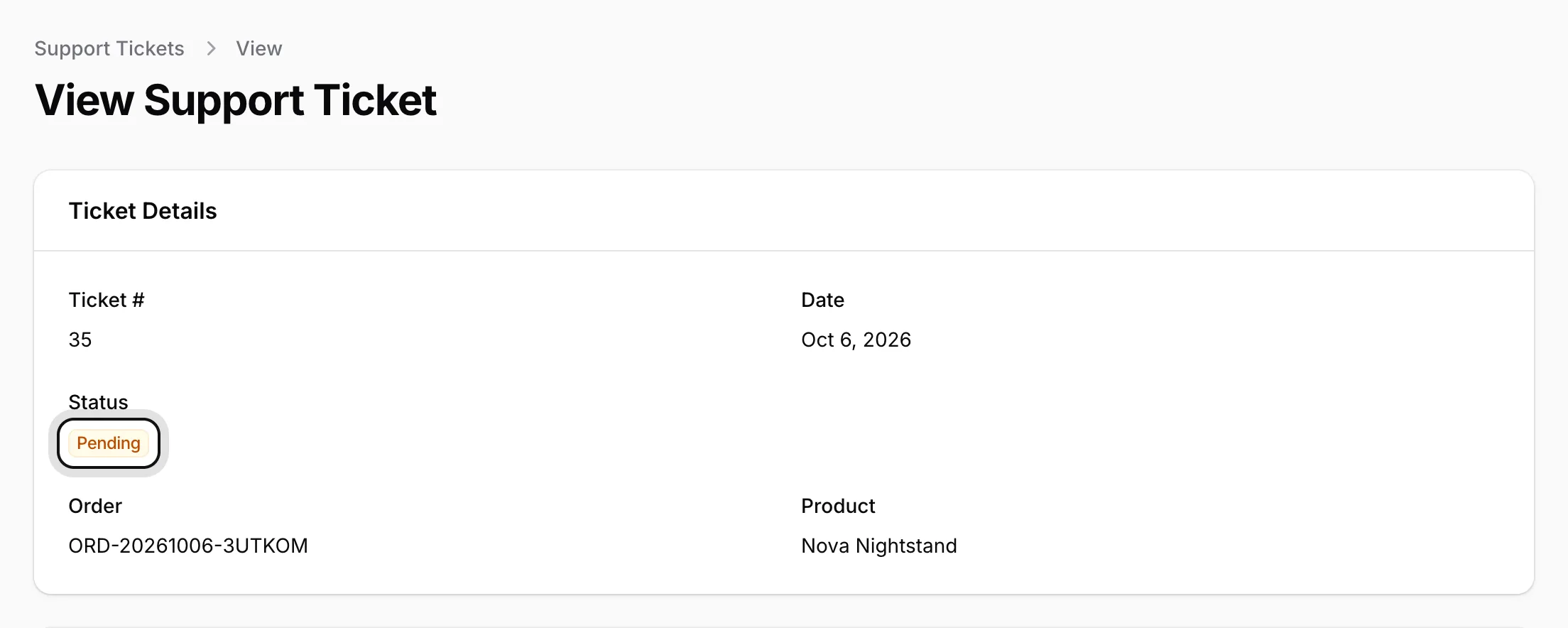
Click Create
Your ticket is saved and its page opens. At first its status shows Pending.
You can open one support ticket per product. If a product doesn’t appear in the list, there is already a ticket for it; you can follow it in the Support Tickets list.