
How do I report a payment I made?
When you have paid an installment, send us the date, a short note and, if you like, your receipt.
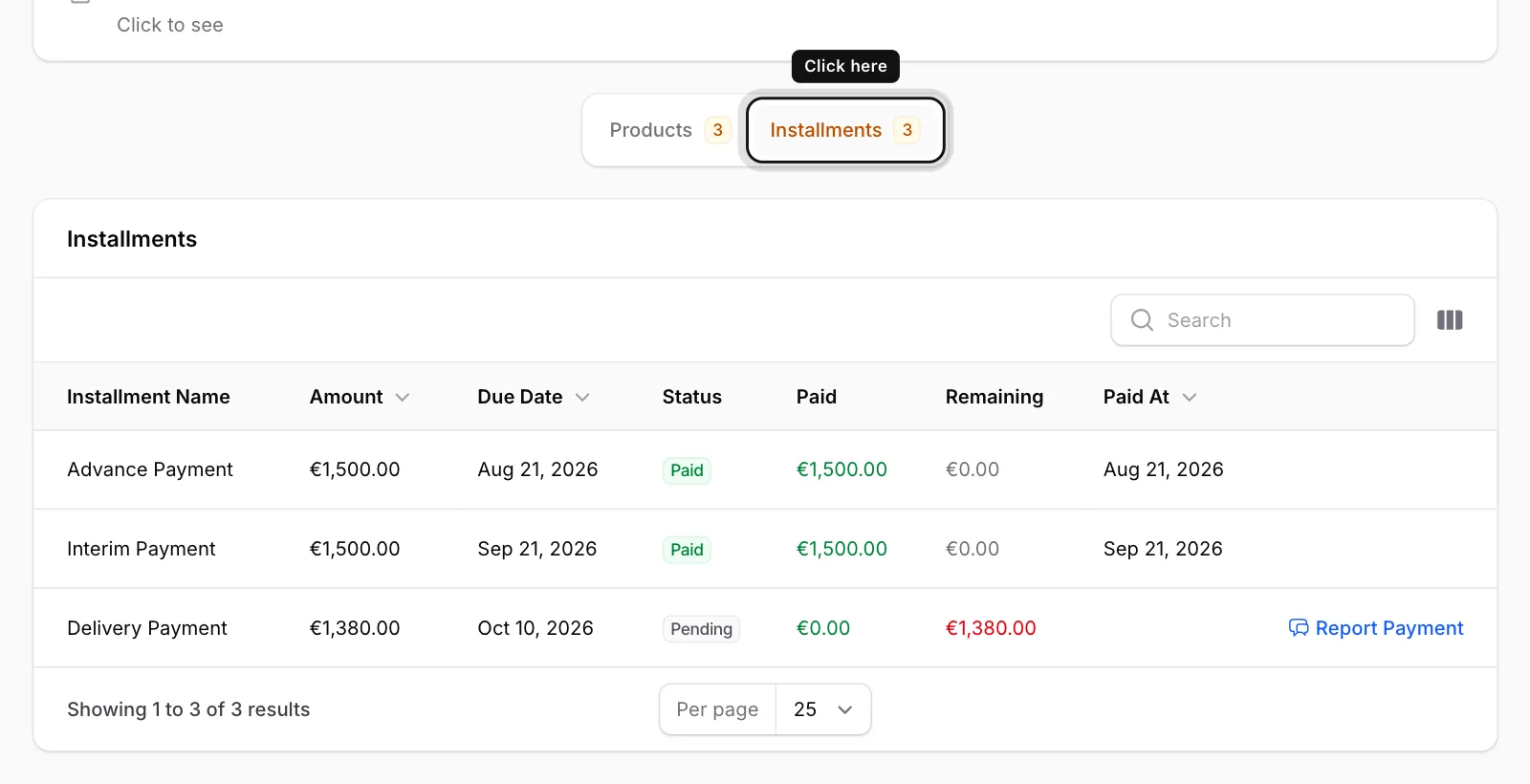
Open the Installments tab
Open the order and click the Installments tab at the bottom of the page.
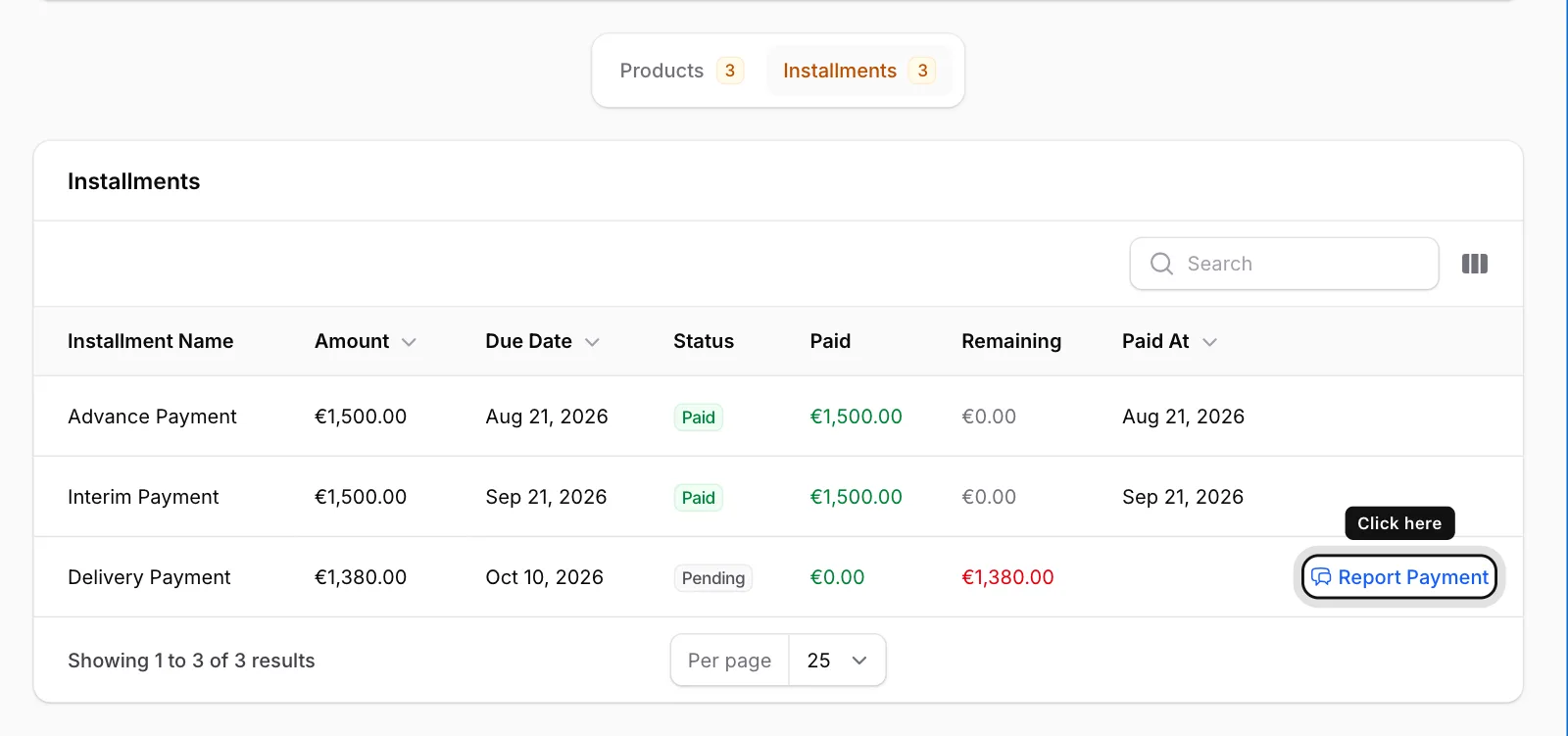
Click Report Payment
Click Report Payment at the end of the row of the installment you paid. The button only appears for installments with an amount still open.
Fill in the form
Pick the Payment Date. In Note / Receipt Info, write a short note about the payment, for example how you sent it. Under Receipt (optional) you can add a PDF or photo: up to 3 files, 10 MB each.
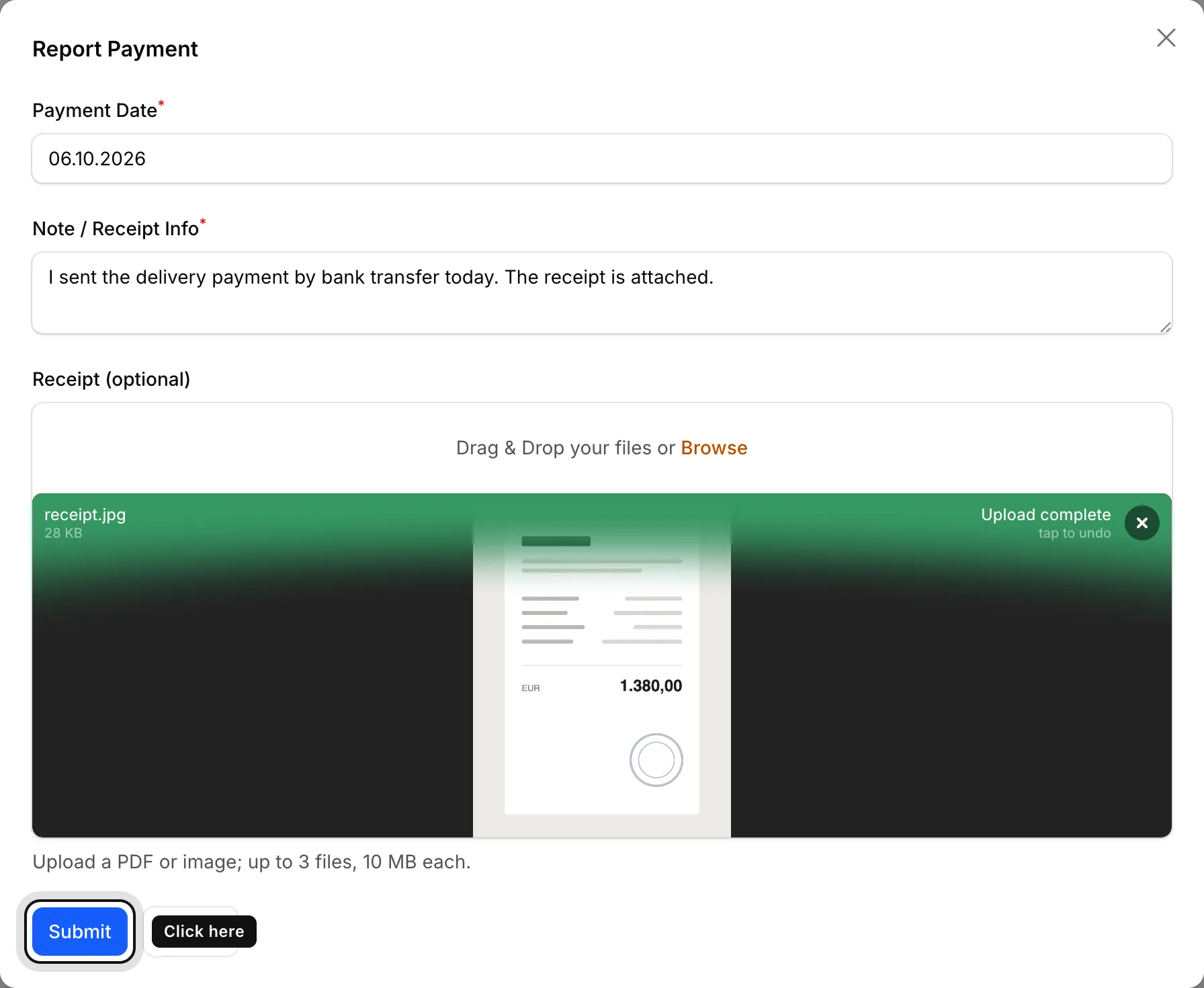
Click Submit
The message “Payment report submitted.” appears. Your report reaches the ENKA HOME team.

A report does not mean the payment has been recorded yet. Once the team has checked and recorded it, the installment shows Paid and the payment appears in the Payment History.